
Agile Quote Security: Elevated Access
USER GUIDE
Find answers to frequently asked questions about agile Quote’s new security feature, including how to get access to it, where to find it, and how to use it.
- What is Quote Security: Elevated Access?
- How Do I Get Access to Quote’s Security Feature?
- Where Can I Find Quote’s Security Feature?
- How Do I Use Quote’s Security Feature?
- How Do I Know If a Quote is Restricted?
- Which Quotes Can I Restrict Access To?
- Who Can Access Restricted Quotes?
- What Enhancements Are Coming to Quote Security?
- Where Can I Submit Feedback for Quote’s Security Feature?
1. What is Quote Security: Elevated Access?
A: Quote Security: Elevated Access is a new feature in agile that gives users with elevated permissions the ability to restrict access to quotes from unauthorized users inside their agency with a single button-click.
Quote Security is an agency-only feature that provides an additional layer of protection over your quote data within your agency.
This feature is controlled by a new agile role that, when assigned, gives the user a button to toggle access on and off for the desired quote.

2. How Do I Get Access to Quote’s Security Feature?
A: To access Quote’s Security feature, you must be granted the new agile role called quote_Elevated-Agency-Access found in the Agency Administration application. Reach out to the agile Administrator in your agency to request access to this role.
3. Where Can I Find Quote’s Security Feature?
A: Once you are granted the new agile role, there are two ways to access Quote’s Security feature:
I. Quote
1. Navigate to Quote in agile.
2. From the dashboard, open the desired quote.
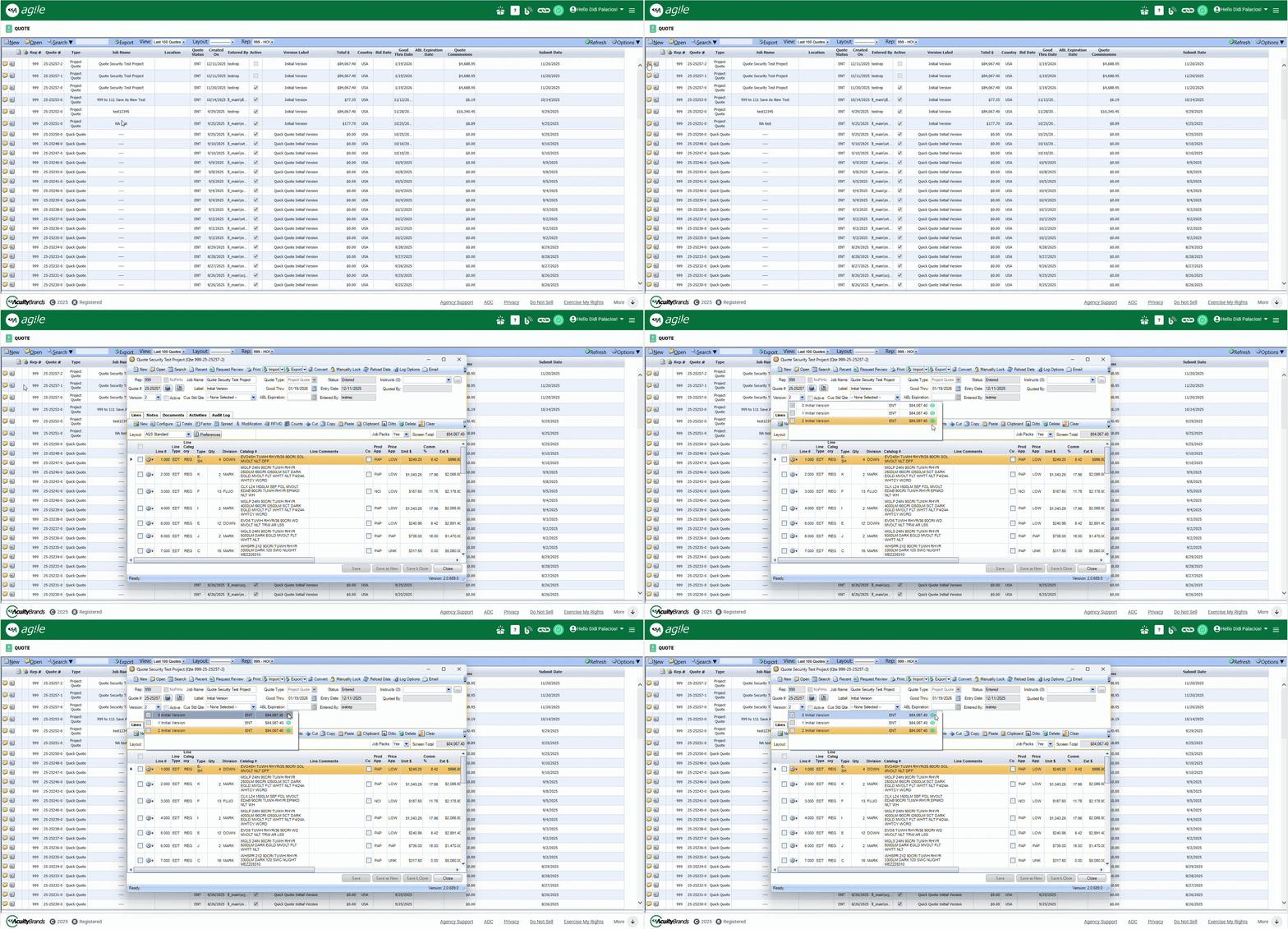
3. At the top left of the quote, click on the Version dropdown button.
4. Next to each quote, you should see a  button. Click this button to instantly restrict access (or remove the restriction) from the desired quote.
I. Project Container
1. Navigate to Project Container in agile.
2. From the dashboard, open the desired project.
3. Click on the Quote tab.
4. Next to each quote, you should see a button. Click this button to instantly restrict access (or remove the restriction) from the desired quote.

4. How Do I Use Quote’s Security Feature?
A: If a quote has a button next to it, this means that the quote is not restricted. Anyone in your agency can access the quote. Click the button to instantly restrict access to the quote.
If a quote has a  button next to it, this means that the quote is restricted. Users must have the agile role quote_Elevated-Agency-Access to access restricted quotes. Click the button to instantly remove the restriction.
5. How Do I Know If a Quote is Restricted?
A: Restricted quotes are highlighted dark gray in the Quote application and Project Container’s Quote tab.
If you have the agile role quote_Elevated-Agency-Access, you will also see a button next to the quote if it is restricted.
If you do not have the agile role quote_Elevated-Agency-Access:
- You cannot open restricted quotes
- You cannot preview restricted quotes
- You cannot edit restricted quotes
- You cannot copy a restricted quote into a new quote version or project
- You cannot set a restricted quote as the active version
- You cannot see Total Quote $ or Commissions-related data for restricted quotes
- You cannot open quote printout documents from restricted quotes
- Documents that are manually uploaded to Quote’s “Documents” tab are shared across the entire project and can be opened without the “Elevated-Agency-Access” role.
- You cannot convert a quote to an order from Quote’s application
 You can, however, convert a quote from Order Management’s Convert From Quote menu. This is to prevent delays in the ordering process once the bid is won.

6. Which Quotes Can I Restrict Access To?
A: You can restrict access to any new or existing quote that belongs to your agency.
7. Who Can Access Restricted Quotes?
A: Users who have the agile role quote_Elevated-Agency-Access (i.e., users who have access to Quote’s Security feature) can access any restricted quote that belongs to their agency.
8. What Enhancements Are Coming to Quote Security?
A: After Quote Security’s launch in March 2026, expect these enhancements to follow later in the year.
These enhancements focus on expanding the security of sensitive quotes and delivering a consistent, unified experience across agile by restricting access to quote data from additional applications.
Total Quote $ and Commissions-related data for restricted quotes will be hidden from unauthorized users in additional agile applications, such as Order Management and Submittal Generator.
UPDATE: As of 03/10/2026, Quote’s new security layer is expanded to Bid Board. Users without elevated access cannot view Total Quote $ in Bid Board for restricted quotes.
Submittals cannot be opened, edited, or created for restricted quotes by unauthorized users.
Documents that belong to restricted quotes (accessed from Project Container’s Documents tab) will be hidden from unauthorized users.
UPDATE: As of 02/25/2026, Quote’s new security layer is expanded to quote printout documents. These are documents that are automatically generated by the Quote application when a quote is printed from the “Print Quote” menu.
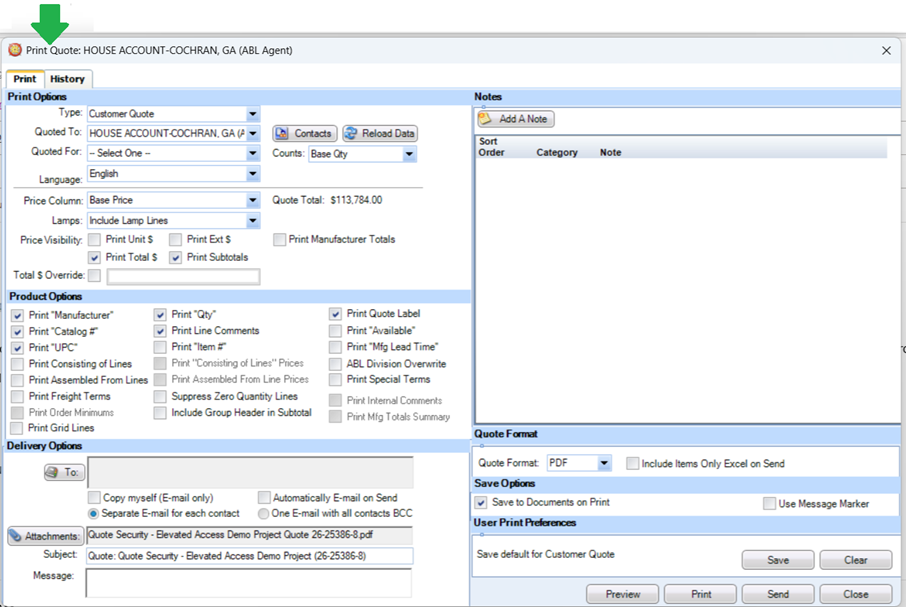
Documents that are manually uploaded through Quote’s “Documents” tab, such as emails, are not currently protected by Quote Security. This is because they are shared across the entire project, making them easier to locate, especially for quotes with multiple versions.

We are currently exploring solutions to expand Quote’s new security layer to manually uploaded documents. In the meantime, we do not recommend uploading any sensitive documents to Quote’s “Documents” tab that you do not want to be accessible to your entire agency.
9. Where Can I Submit Feedback for Quote Security?
A: Share your feedback or ideas for improving Quote Security by using this Feedback Form! You can submit the form more than once, so feel free to share as much feedback as you’d like.